Click the link below to view DeepInfinity product details:
Click the link below to get DeepInfinity App from Microsoft Store:
Step 1: Open the Azure Marketplace link below:
DeepInfinity AI Azure Marketplace
Step 2: Click Get it Now and proceed with the required details.
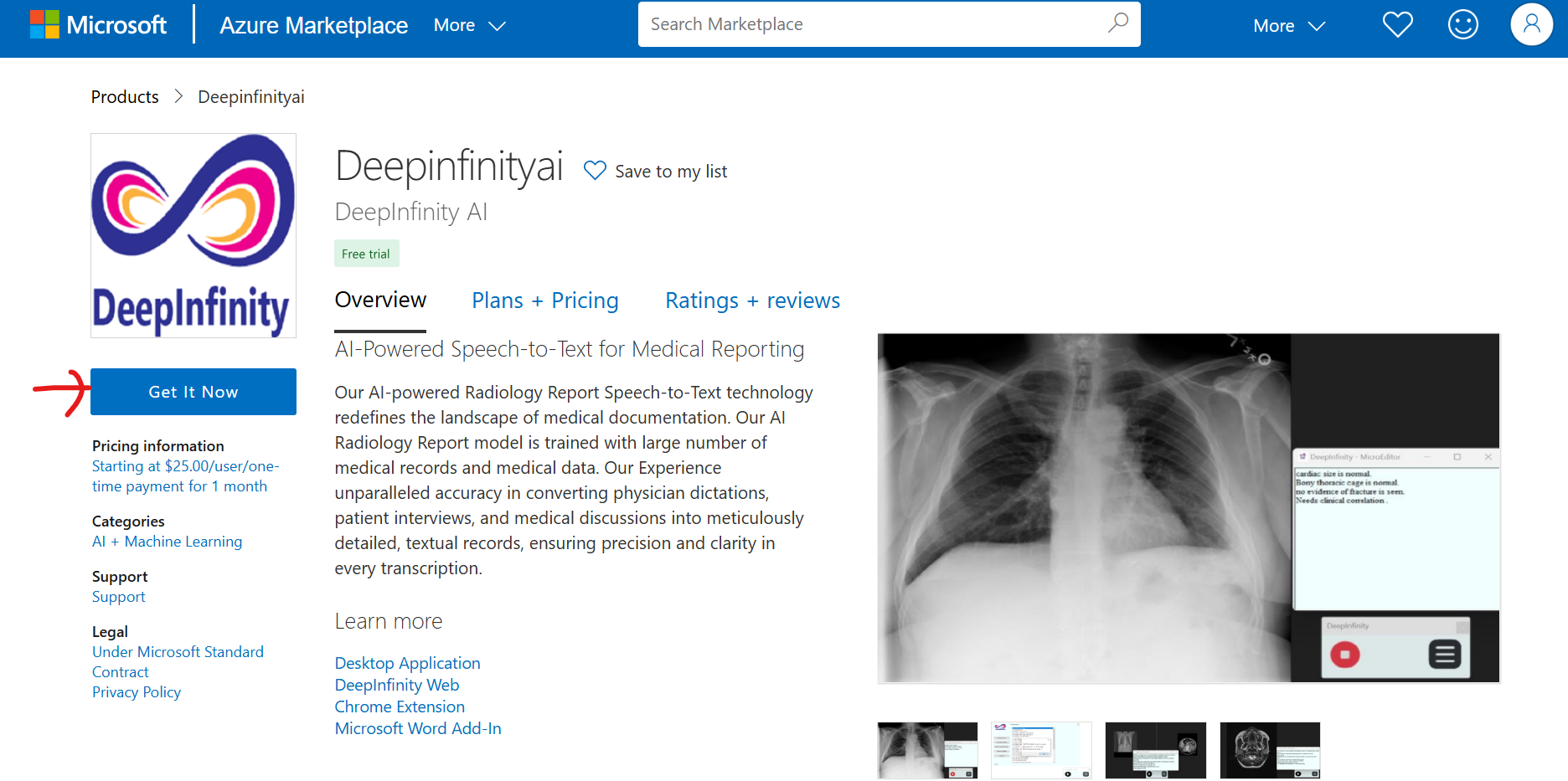
We offer a suite of tools designed to simplify and enhance radiology reporting:
- Chrome Plugin: Quick access to reporting features directly in your workflow.
- DeepInfinity Web App: A user-friendly application for on-the-go reporting.
- Web UI: A comprehensive browser-based interface for advanced radiology workflows.
- Word Plugin: Streamlined reporting directly inside Microsoft Word.
DeepInfinity Radiology Report Chrome Plugin
DeepInfinity Web UI for Radiology Reporting
DeepInfinity Word Plugin for Radiology Reporting
Need the Web App installation link? Contact us:
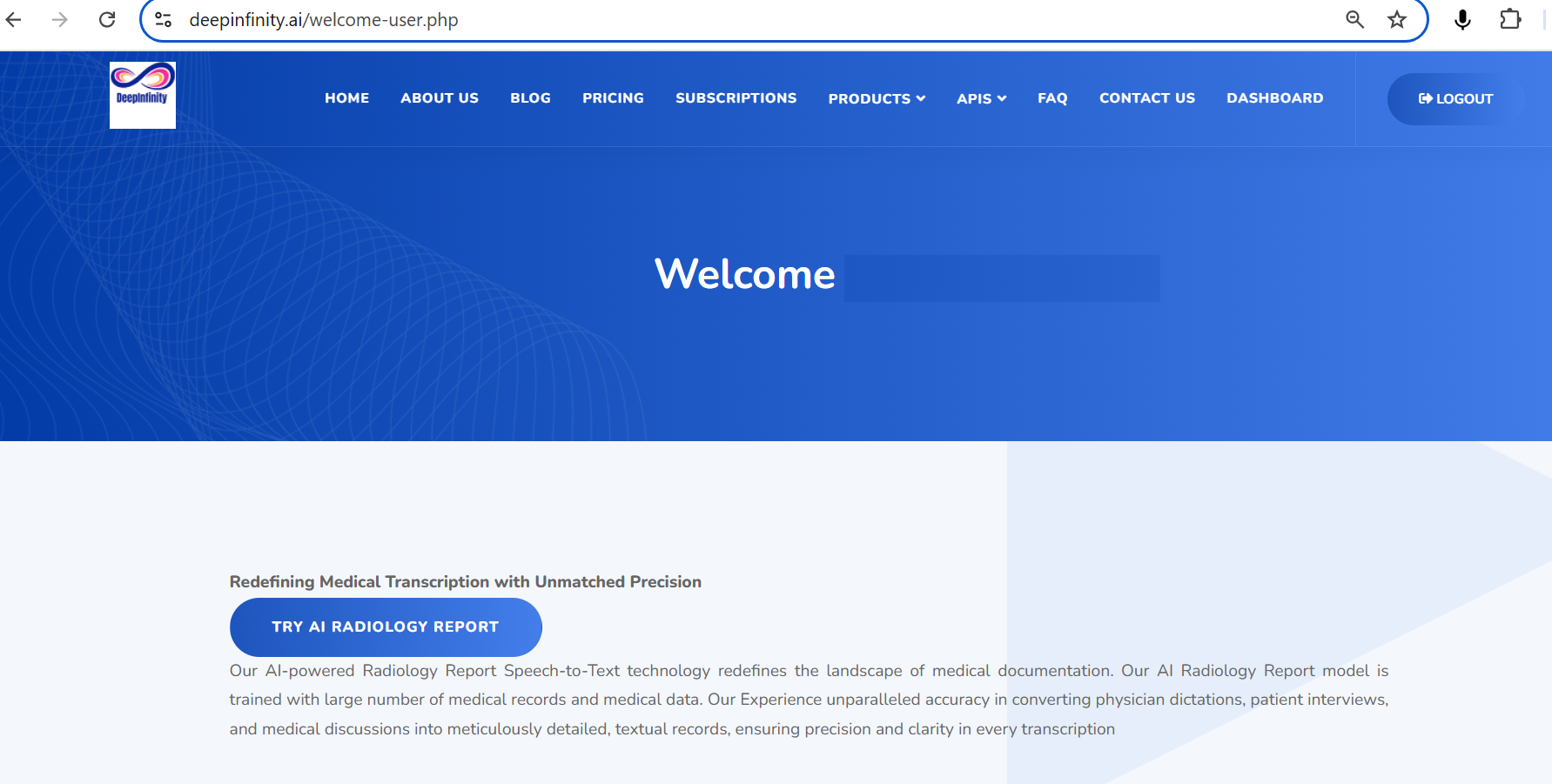
Step 1: Login to DeepInfinity and click Try AI Radiology Report.
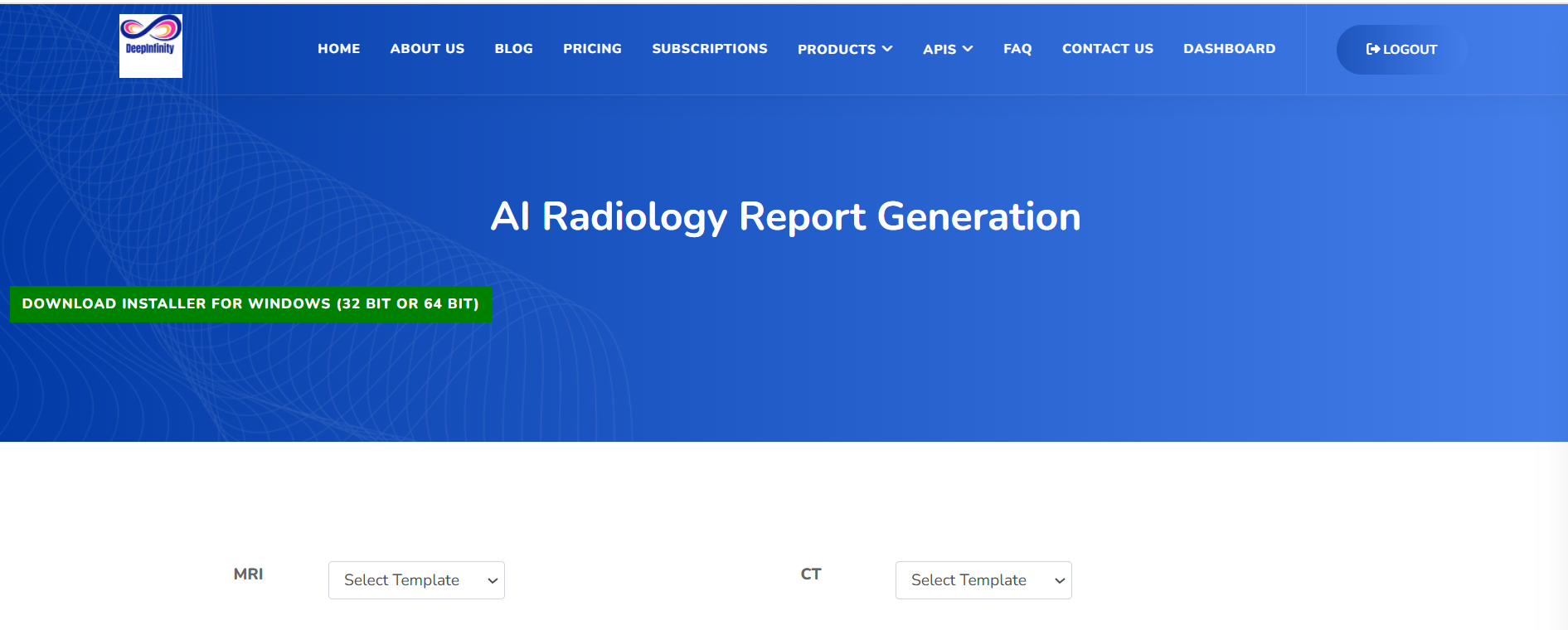
Step 2: Click Download Installer.
Step 3: Extract the ZIP and run Deepinfinity.exe.

Step 4: Install Visual C++ if prompted.

Step 5: Click More Info and then Run Anyway.
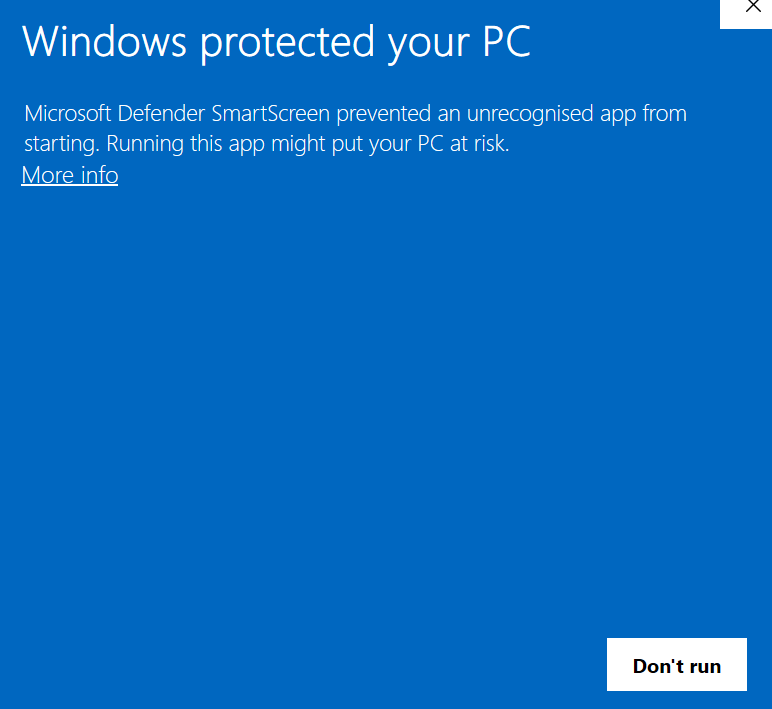
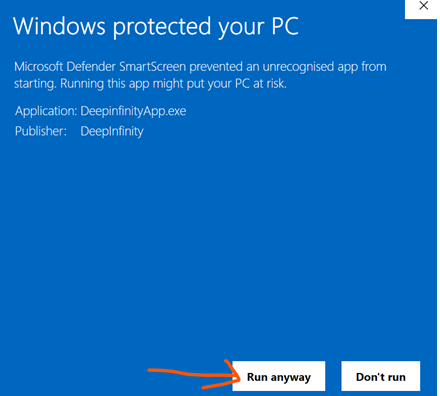
Continue installation by clicking Next through the installer screens, agree to the terms, then launch the app and login with your credentials.
Watch the user guide video below:
DeepInfinity Speech To Text App user guide in any PACS reporting system
You can also get it directly from Microsoft AppSource:
Get DeepInfinity Word Plugin from Microsoft Store
Then open Word, go to Add-Ins, choose More Add-Ins, search for DeepInfinity, add it, and continue setup.

Step 1: Open the Chrome Web Store link below:
Step 2: Click Add to Chrome.

Step 3: Click Add Extension.

Watch the Chrome Plugin user guide video below:
Step 1: Click the Sign Up button and register with your email address.
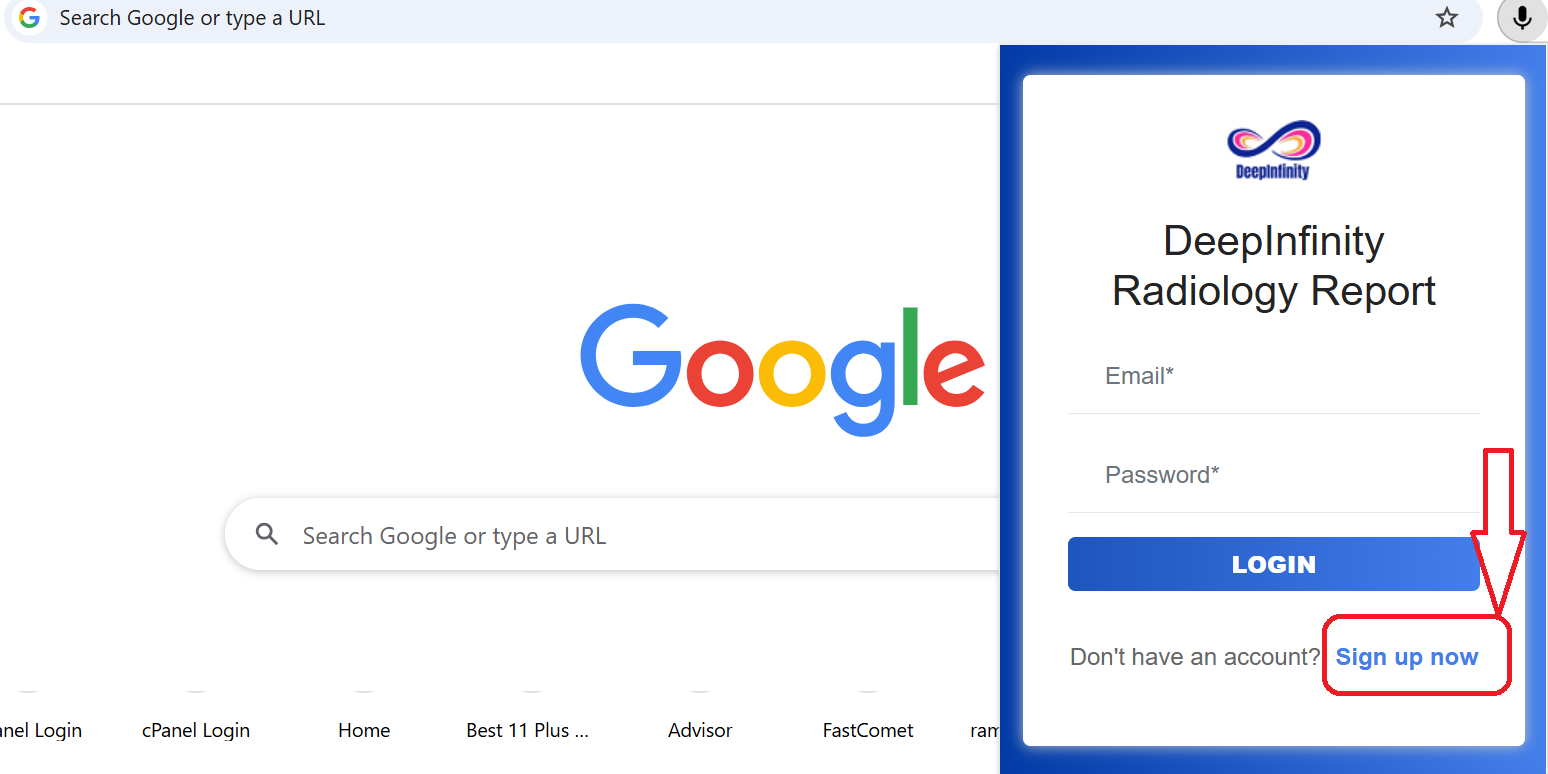
Step 2: Use the same credentials to login to the DeepInfinity Chrome Plugin.
Once your 3-day free trial expires, please use the subscription page below:
Click Here to take Subscription for DeepInfinity Chrome Plugin
Click the site settings icon on the left side of the browser tab and enable microphone access if disabled.
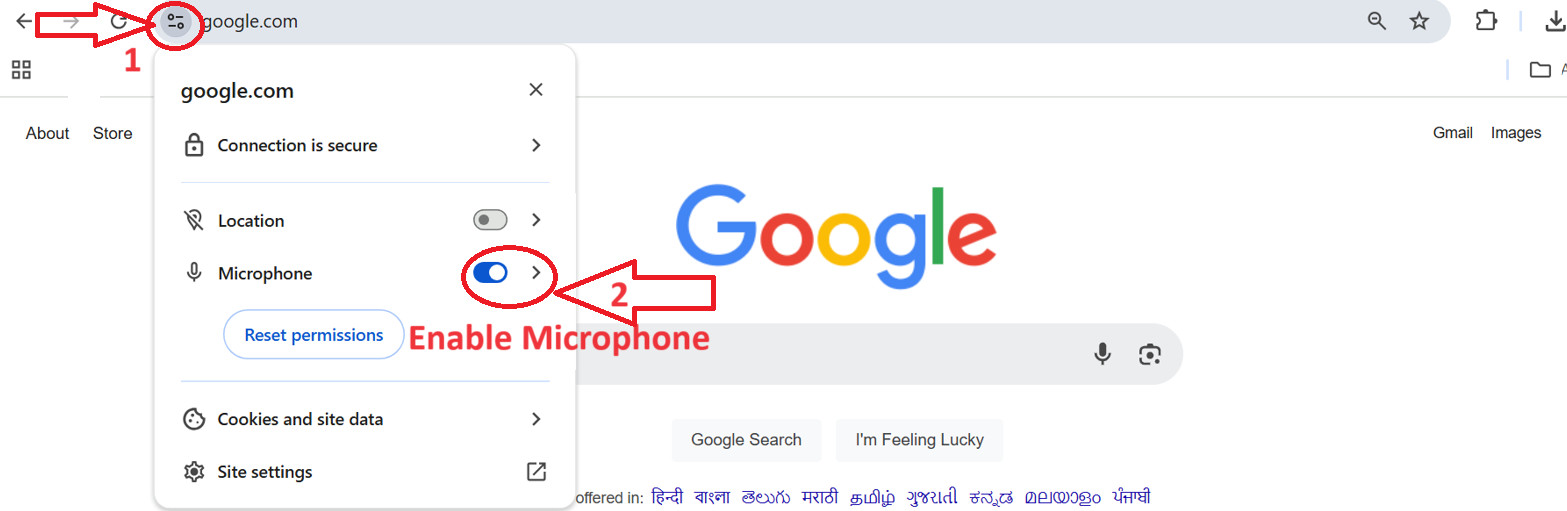
If the microphone stops after 10 seconds, make sure the plugin is not active in another browser tab. Turn it off in other tabs or close the previous tab.
Navigate to the APIs menu and select AI Radiology Report Generation. Click the play button to start recording and pause to stop.
Go to your browser settings and open Site Settings. Under Pop-ups and redirects, allow pop-ups if needed.
Navigate to the APIs menu and select Convert Audio API. If you are a subscriber, you can use it directly or request access.
Click on Login in the navigation bar, then choose the sign-up option and provide the required details to register.
In the website navigation bar, open APIs and select Doctor-Patient Conversation API. If you do not yet have access, you can request it.
In the navigation bar, select Dashboard. The dashboard includes options to access and review your reports.