FAQ
What products do you offer for radiology reporting?
We offer a suite of tools designed to simplify and enhance radiology reporting:
- 1. Chrome Plugin : DeepInfinity Radiology Report:
Seamlessly integrates with your browser for quick access to reporting features directly within your workflow.
DeepInfinity Radiology Report Chrome Plugin - 2. DeepInfinity Web App: A user-friendly application for on-the-go reporting, accessible anytime, anywhere.
- 3. Web UI: A comprehensive web-based interface providing advanced functionalities and collaboration tools. DeepInfinity Web UI for Radiology Reporting
- 4. Word Plugin: Effortlessly integrates with Microsoft Word for streamlined report creation and formatting. DeepInfinity Word Plugin for Radiology Reporting
For DeepInfinity Web APP Installation Link: Contact Us:
Chat with us on: +44 7359359232 (Click Here)
Chat with us on: +91 8639451478 (Click Here)
How to install DeepInfinity App for Radiology Reporting?
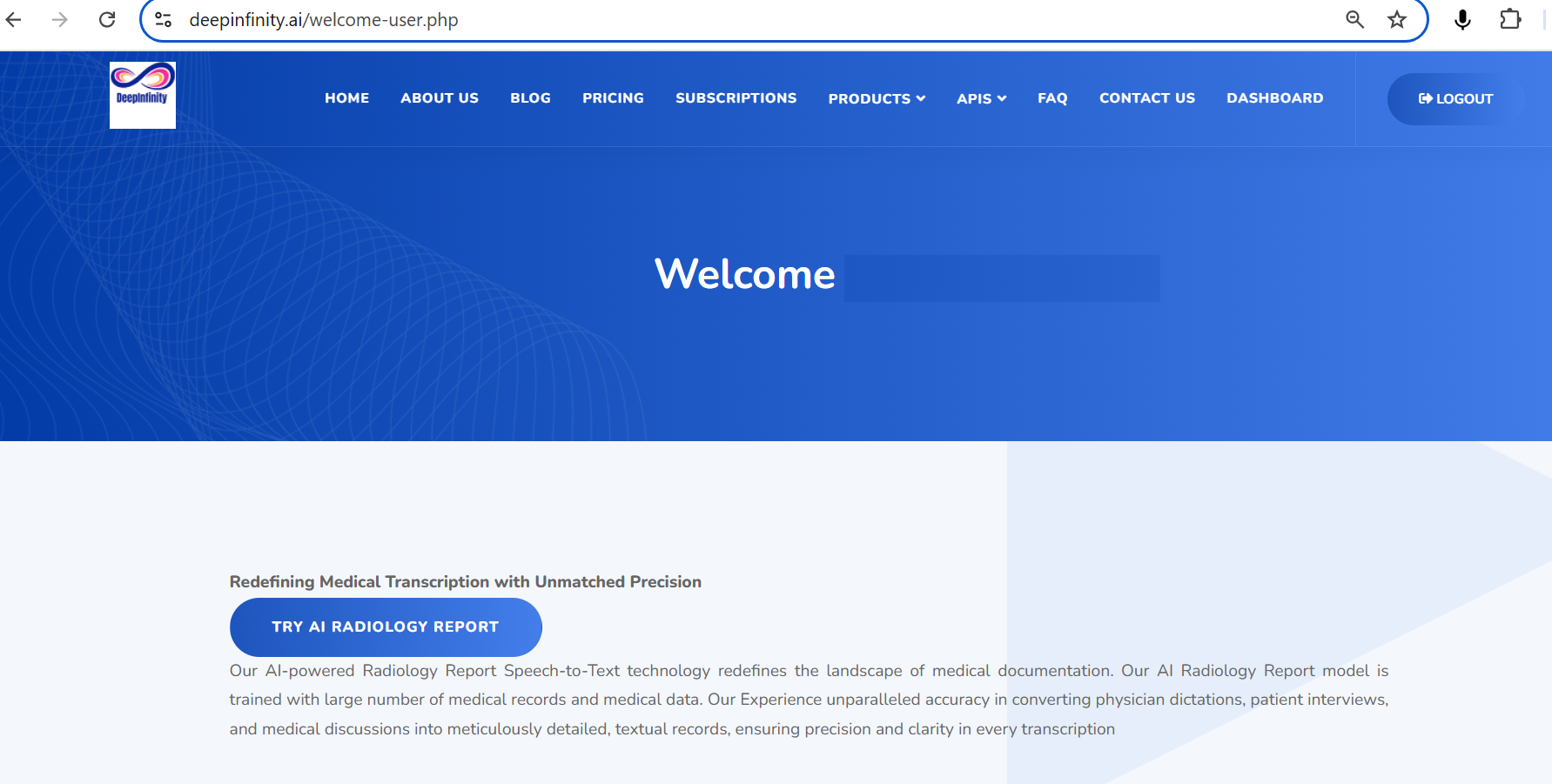
Step 1: Login to DeepInfinity with your credentials and Click on “Try AI Radiology Report”
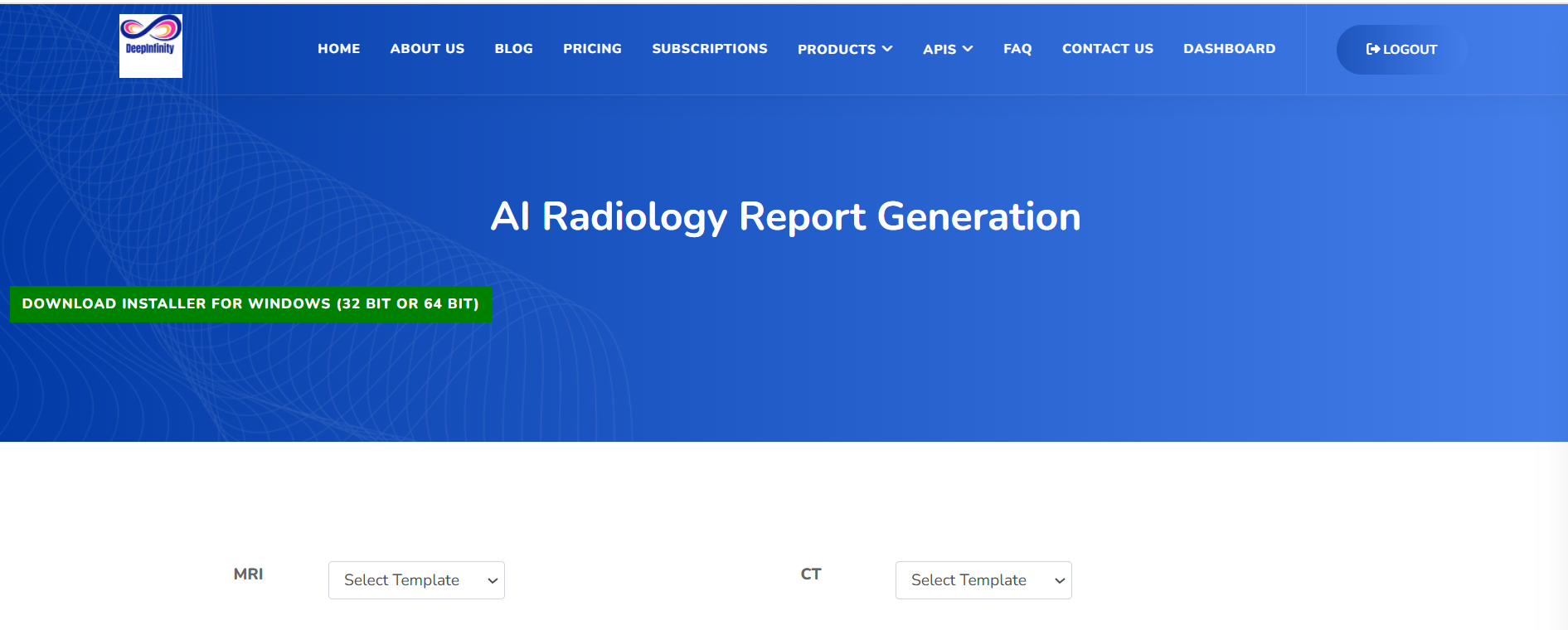
Step 2: Click on Download Installer
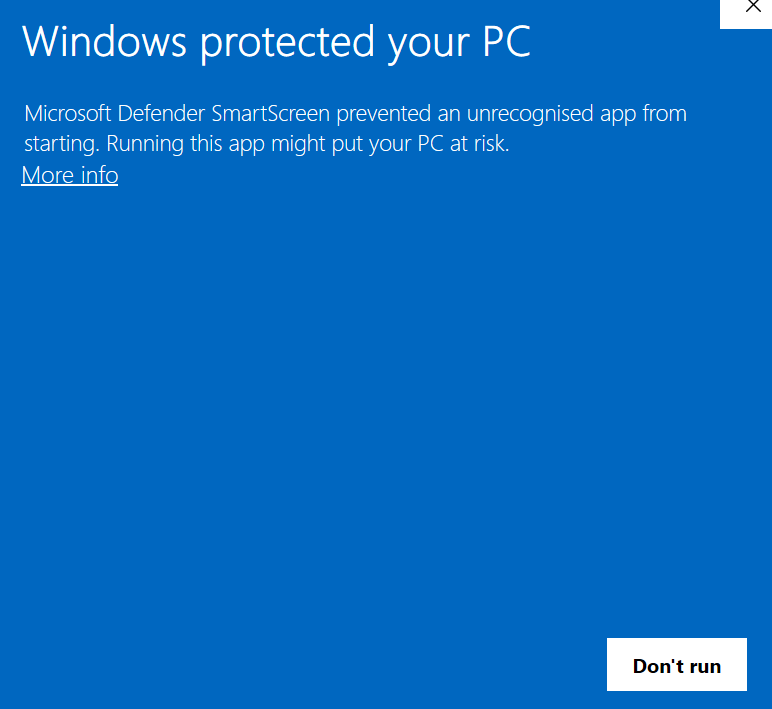
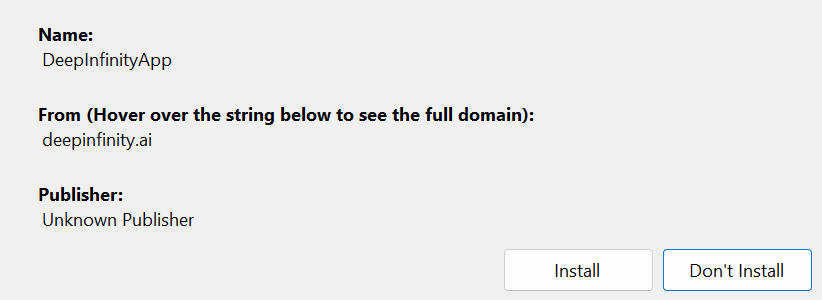
Step 3: Double click on the "exe" file to install the Deepinfinty App

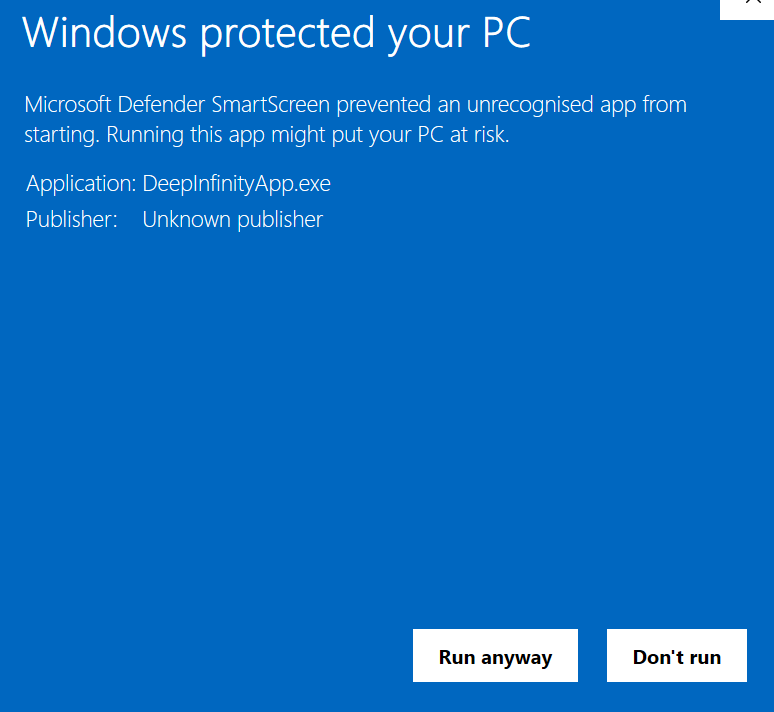
Step 4: Click on "MoreInfo" and Then click on "RunAnyway"
Step 5: Click on "Insall"
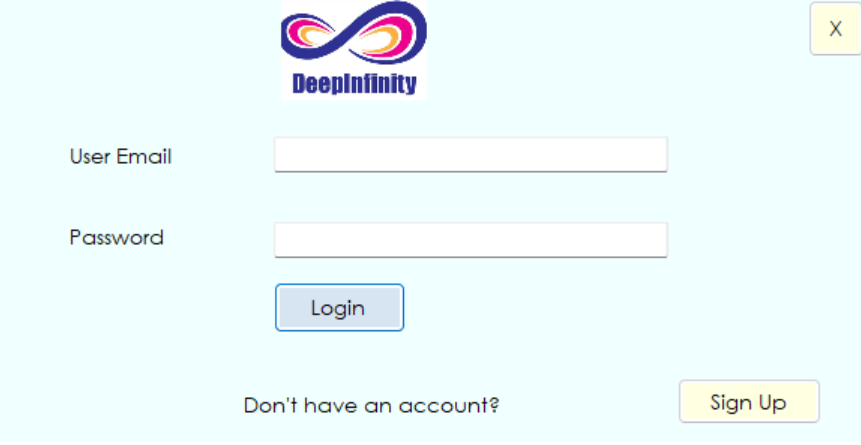
Step 6: Login with your registered Credentials"
Step 7: Select Ms Word if you are using Ms word or select Open Office if you are using open office."
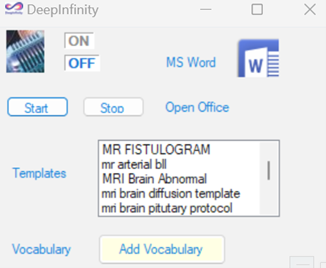
Step 8: Use start button to start reporting and stop button once reporting is done"
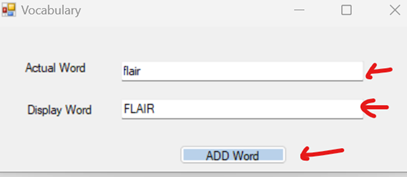
Step 9: Click on Add Vocabulary to Add Customized words"
Enter pronouncitaion form and respective display form and click on ADD
How to use DeepInfinity App for Radiology Reporting?
Please view below user guide video to know how to use DeepInfinity App for radiology reporting
DeepInfinity WebApp User Guide Video
How to install DeepInfinity Word Plugin for Radiology Reporting?
Step 1: Open MS Word Document and Click on Add-Ins
or you can get the DeepInfinity Word plugin frome below Microsoft Link
Get DeepInfinity Word Plugin from Microsoft Store

Step 2: Click on More Ad-Ins

Step 3: Search for DeepInfinity and Click on ADD

Step 4: Click on Continue

Step 5: Click on Allow and Continue

Step 6: Login with your registered credantials or click on Sign up to register

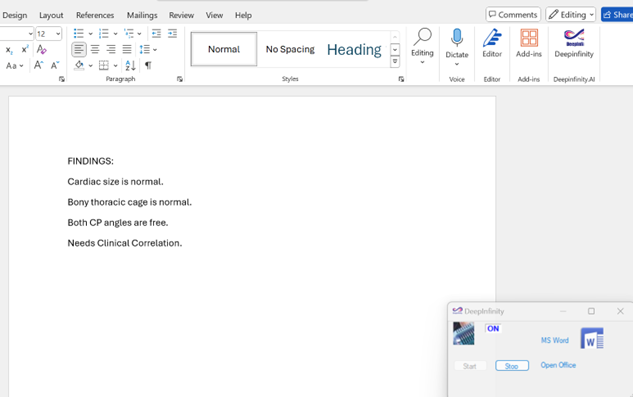
Step 7: Once Login is Successful click on Start button to start speaking and read your radiology report

Step 8:Sample Report

Step 9: You can load your customised templates from template dropdowns of MRI, CT, X-RAY, ULTRA to ease your reporting

Step 10: To Save your report click on Save button

How to install DeepInfinity Radiology Report Chrome Plugin?
Step 1: Go to Chrome Web Store and Search for "DeepInfinity"
or open this link:
DeepInfinity Chrome Plugin
Step 2: Click on the DeepInfinity Plugin
Step 3: Click on "Add to Chrome" button

Step 4: Click on "Add Extension"

How to use DeepInfinity chrome plugin for Radiology Reporting?
Please view below user guide video to know how to use DeepInfinity chrome plugin for radiology reporting
DeepInfinity Chrome Plugin User Guide Video
How to register to access DeepInfinity Chrome Plugin?
Step 1: Click on the Sign up button and register with your email address
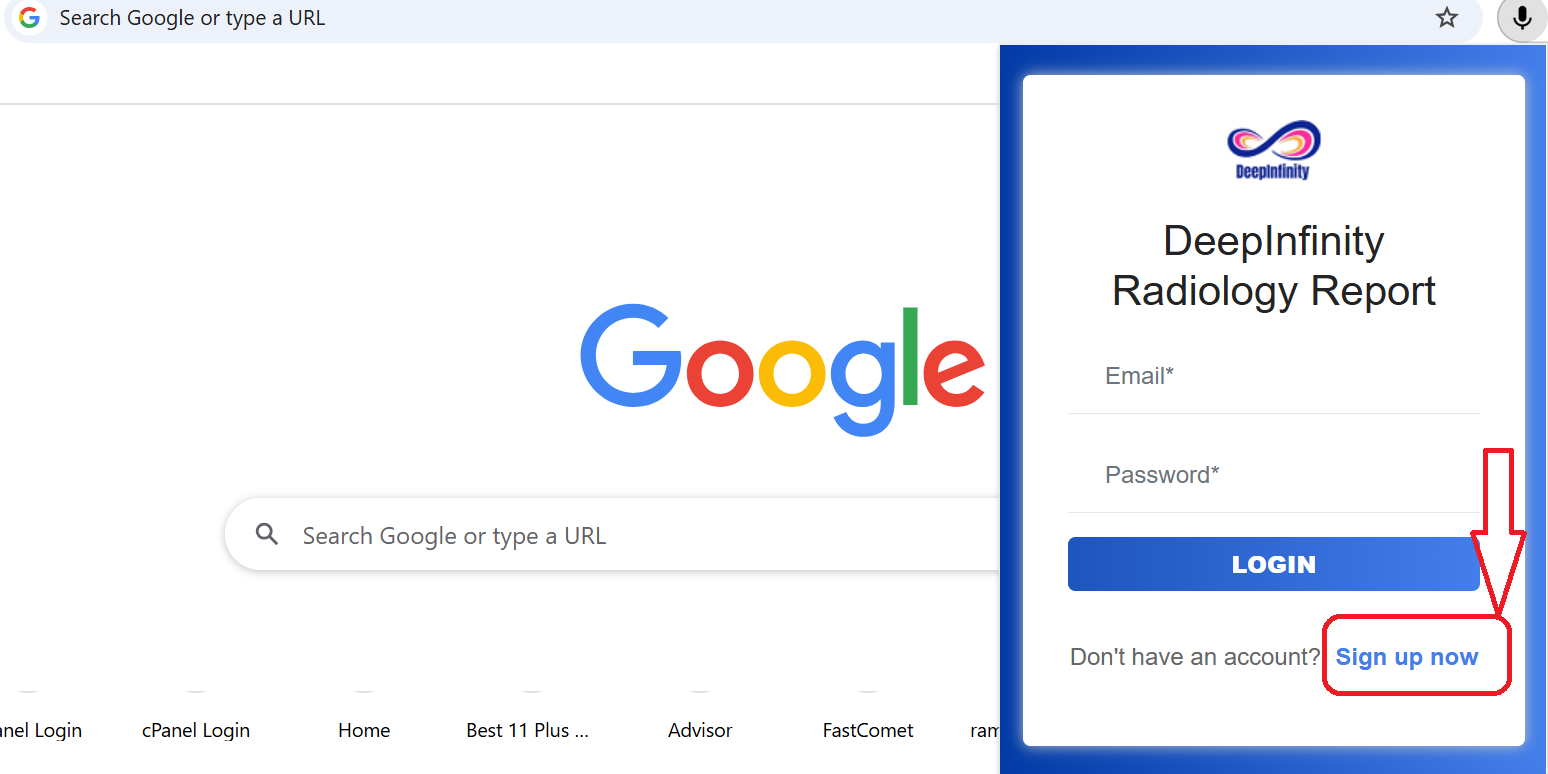
Step 2: Once registration is done, use same credentials to login to Deepinfinity Chrome Plugin
How to take subscription for DeepInfinity Chrome Plugin?
Step 1: Once your 3-day free trail is expired, please visit below link to get subscription
Click Here to take Subscription for DeepInfinity Chrome Plugin
How to fix enable microphone for DeepInfinity Chrome Plugin?
Step 1: In the left side of your tab, click on setting (As shown in figure)
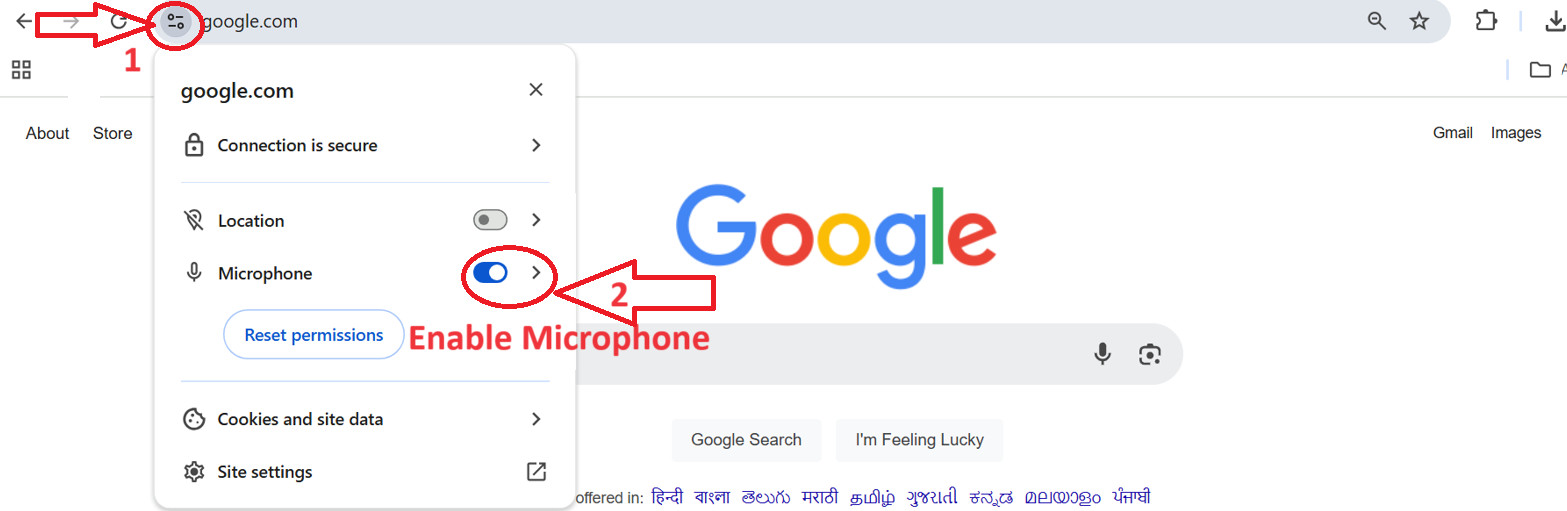
Step 2: Enable the Microphone, if its not enabled
Why DeepInfinity Chrome Plugin microphone is getting stopped after 10 seconds?
If Deepinfinity microphone is getting stopped after 10 seconds, make sure the Deepinfinity plugin is not ON or using in any other tabs.
Make sure you turn off DeepInfinity Plugin Microphone in other tabs or close that previous tab
How to Add your own report templates(CT, MRI, ULTRASOUND, CBCT, X-RAY) from chrome plugin?
Step 1: In the right side of your tab, click on Template (As shown in figure)

Step 2: If you get request to login, Please login with your registered credentials

Step 3: Click on ADD TEMPLATE button

Step 4: Enter the template name, template voice command (your own voice commad for that template),
select the template type (MRI, CT, X-RAY, Ultrasound) and content related to the report.
Then, click on submit to save the template.
Once the template is saved, you can use the voice commad to get your template nextime.

How to Add your own Macro (short cut word for most common paragraphs) from chrome plugin?
Step 1: In the right side of your tab, click on MACRO (As shown in figure)

Step 2: If you get request to login, Please login with your registered credentials
Step 3: Click on ADD MACRO button

Step 4: Enter the macro name, macro voice command (your own voice commad for that macro),
and then enter or copy paste the parahraph related to that voice commad.
Then, click on submit to save the macro.
Once the macro is saved, you can use the voice commad to get your macro nextime.

How to Add your own medcial Vocabulary words (word replacements, capitalizations) from chrome plugin?
Step 1: In the right side of your tab, click on VOCABULARY (As shown in figure)

Step 2: If you get request to login, Please login with your registered credentials
Step 3: Click on ADD VOCABULARY WORDS button

Step 4: Enter the Display Word (which you want to be in your in report)
Then enter the pronouciation form (which is the actual word)
Then, click on submit to save the Vocabulary word.
Once the vocabulary word is saved, you can use the voice commad to get your replacement word nextime.

How to use AI for radiology report generation?
Navigate to the “API”s menu. There, click on the option “AI Radiology Report Generation.” Click on Play Button to start recording and pause button to stop the recording.
How to unblock pop-ups and allow?
Go to your browser settings and open “Site Settings.” Under “Pop-ups and redirects,” you can block or allow pop-ups based on your browser.
How to use convert audio API?
Navigate to the “API”s menu. There, you’ll find the “Convert Audio API” option. If you're already a subscriber, you can request a trial, subscribe, or use the Convert Audio API.
How to Register?
Click on "Login" at the end of the navigation bar. Enter your login credentials or choose the sign-up option to create an account. Provide the required information and click "Register".
How do you get access to doctor-patient conversation API?
In our website’s navigation bar, find “APIs.” Select the “Doctor-Patient Conversation API” option. If you have access, you can use the API directly. Otherwise, you can request access.
How do you view reports in the Dashboard?
In our website’s navigation bar, select “Dashboard.” The dashboard offers various options, including access to the reports you need.